![pascal_logo.png]](https://help.vartion.com/hs-fs/hubfs/pascal_logo.png?width=160&height=42&name=pascal_logo.png)
In this release, labels are introduced. A new way to categorise and organise hits, cases and clients. Labels allow teams to apply flexible, organisation-wide tags that reflect their own internal processes, workflows and review priorities.
Labels are customisable and colour-coded, making it easier to identify, filter and manage information throughout Pascal. This helps teams to quickly find relevant records, support reviews, and provide easier case management.
How to add a new label
-
Open the relevant hit, case or client.
-
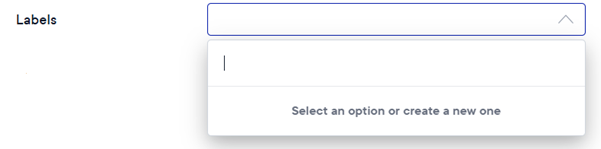
Click inside the Labels dropdown.
-
Type the name of a new label.
-
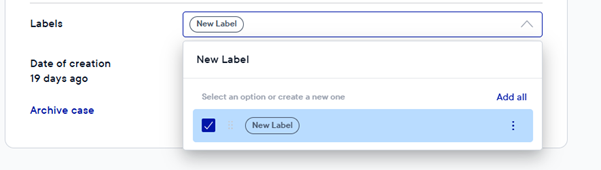
Press Enter or click the checkbox to confirm the new label.
Once labels have been created, they can be selected from the Labels dropdown and reused across hits, cases, and clients.
How to change a label colour
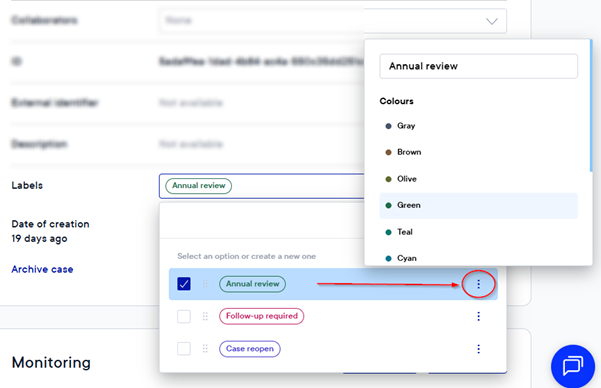
- Click on the three dots next to the label.
- Select the desired colour.
How to delete a label
- Click on the three dots next to the label.
- Scroll down to the Delete label button, below the colour options.
- In the confirmation dialog, press the Confirm button.
How It's Beneficial
- Flexibility - Create organisation-specific labels that support unique workflows, processes, and classifications.
- Consistency - Apply the same labels across hits, cases, and clients to maintain a standardised approach to categorisation across your organisation.
- Efficiency – Quickly identify, filter and manage relevant records, helping teams streamline reviews and improve management of information throughout Pascal.