![pascal_logo.png]](https://help.vartion.com/hs-fs/hubfs/pascal_logo.png?width=160&height=42&name=pascal_logo.png)
Pascal is the KYC/AML screening solution that integrates seamlessly with HubSpot. With Pascal, you can perform risk-based KYC and KYB screenings on your contacts and companies, using over 700 million global data sources on Sanctions, PEPs and Adverse media. Pascal enables you to monitor your clients' status continuously and automatically from your HubSpot account, saving you time and hassle.
Before you start
Contact card
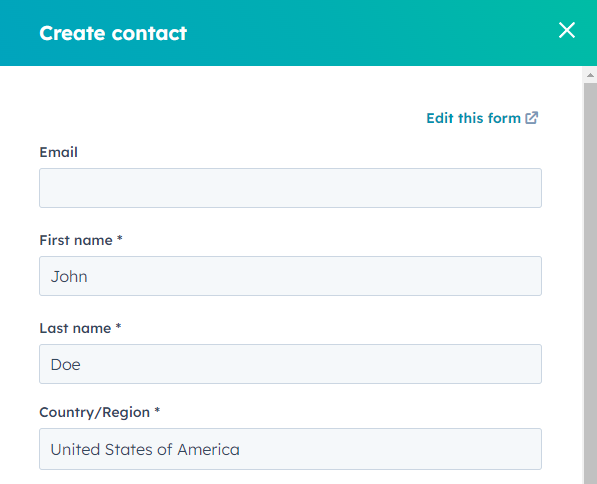
One of the ways to improve your experience with Pascal, is to add the Country/Region field to the Create contact form and make it a required field. When creating a new contact, use the contact's first and last name as they appear on the passport or other official documents.
This will help Pascal provide you with more relevant and accurate feedback based on the contact's name and location.
Company card
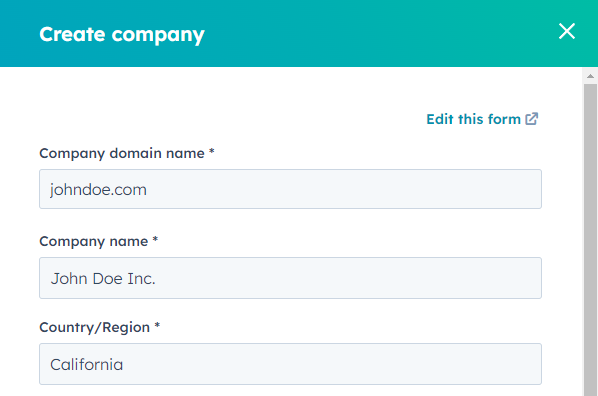
One of the important steps in setting up the Create company form is to add the Country/Region field. The company card will then show where the company is registered. Making this a mandatory field will help Pascal provide you with better and more accurate feedback based on the company's location.
When creating a new contact, use the legal name of the company as it appears on official documents. Do not rely on the company domain to fill in this field, as it might not match their correct legal name!
Screening
Screening overview card
Information in the Screening overview card informs you if the record is already being screened, when it was last screened, the status of the case and the current assignee of the case. It can be added to the right side view of contact and company records.
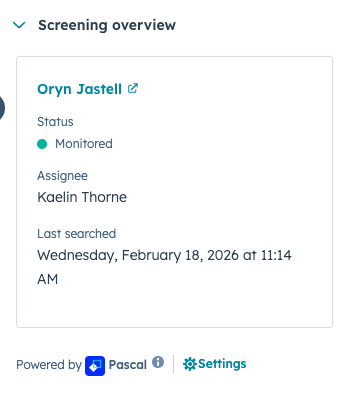
If no case is yet created, you can create a new case or link an existing one.
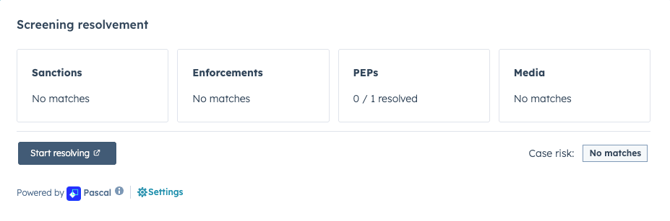
The Screening resolvement card provides insights into the found results of the performed screening. Unresolved items can be viewed and resolved by pressing the Start resolving button, which will direct you to the case in Pascal.
By default, new cases are created as Preview cases. These cases allow you to view a snapshot of the screening including details on the results found. To unlock all the features, including the ability to monitor the contact or company, you need to create a full case by clicking on Turn info a full case.
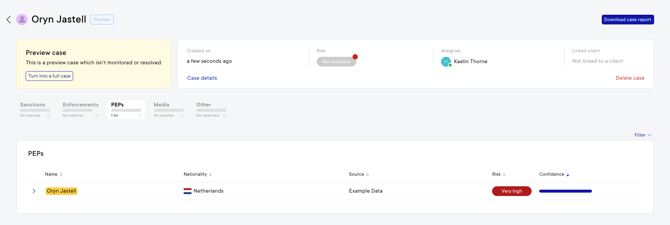
In Pascal, you can view found results in more detail and determine their resolution. After all the alerts of a contact or company have been reviewed, the status can be changed to Monitored or Archived.

When the status is changed to Monitored, the contact or company will be automatically monitored for new hits. These new hits will also be visible in the Screening resolvement card in HubSpot.
To access the product documentation and tutorials for the Pascal application, which explain its features and capabilities in detail, you can navigate to the documentation here or by following the below steps:
- Click on your initials in the top right corner.
- Go to the Need help? page.
- On the newly opened side panel on the left, click on Documentation.
With these documents and tutorials, you will learn how to use the Pascal application effectively and explore its various features, such as evaluating and resolving alerts.
This documentation, including images, videos and text, is accurate as of Version 7.10 of Pascal.
We strive to keep our documentation up to date with each release to ensure it remains a reliable resource for our users. However, given the dynamic nature of our software development, there might be instances where changes introduced in subsequent versions are not immediately reflected in this documentation. We encourage users to refer to the latest release notes and to use the feedback mechanism for any discrepancies or requests for clarification.