![pascal_logo.png]](https://help.vartion.com/hs-fs/hubfs/pascal_logo.png?width=160&height=42&name=pascal_logo.png)
The Analysis page allows you to search, filter and review transaction activity across your organisation. You can use it to identify transactions involving specific clients or number of counterparties, analyse transaction amounts and volumes, and export the results for further review.
The results can be grouped by client to provide a summary of each client’s activity, with the option to expand the results and review the individual transactions.
Navigate to the Analysis page by pressing Analysis in the top bar of Pascal.
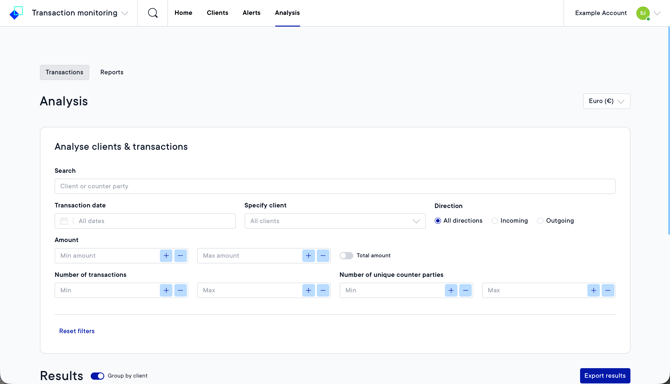
The Analyse clients & transactions card contains several filters that can be combined to narrow down the results of clients and transactions in the table below. You can:
- Search on client name or counterparty name - the Search option lets you search on a specific client by their name or a counterparty by their name.
- Filter by transaction date - select a start and end date of the date range you want to analyse in the Transaction date option.
- Filter by specific client - choose one client in the Specify client option.
- Filter on transaction direction - select either Incoming or Outgoing in the Direction filter.
- Filter by amount - enter a value in Min amount to exclude transactions below that amount. Enter a value in Max amount to exclude transactions above that amount. Turn on Total amount when the amount filter should be applied to the combined value of the transactions rather than to each individual transaction.
- Filter by number of transactions - enter a value in Min to exclude clients with less transactions than that value. Enter a value in Max to exclude clients with more transactions than that value.
- Filter by number of unique counterparties - enter a value in Min to exclude clients with less counterparties than that value. Enter a value in Max to exclude clients with more counterparties than that value.
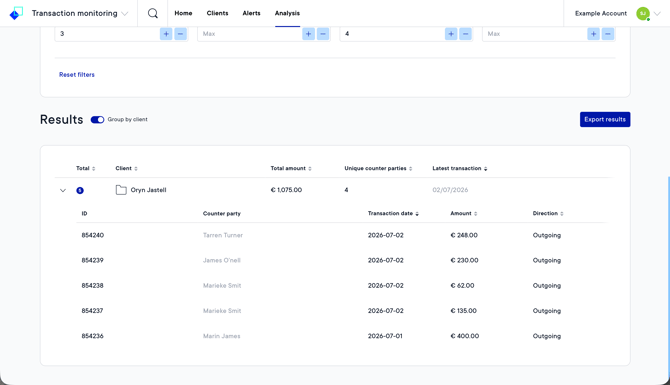
The Group by client option is enabled by default. When this option is enabled, the results combine transactions belonging to the same client into one summary row.
The results show:
- Total - the number of transactions included for that client.
- Client - the client associated with the transactions.
- Total amount - the combined value of the transactions.
- Unique counterparties - the number of different counterparties involved.
- Latest transaction - the date of the most recent transaction in the result.
To view the transactions included in a client's result, you can click on the arrow at the beginning of the row to expand it. This shows you the individual transactions of this client included in the search results. Showing you additional information about the individual transactions:
- ID
- Counterparty
- Transaction date
- Amount
- Direction
You can export the results currently displayed on the Analysis page for further analysis or record-keeping. After applying the relevant search criteria and filters, press the Export results button in the top right corner of the Results section.
The exported results are downloaded as a .csv file. Showing you information about the individual transactions:
- ID
- Client ID
- Client name
- Counterparty name
- Transaction date
- Currency
- Amount
- Direction
This documentation, including images, videos and text, is accurate as of Version 7.17 of Pascal.
We strive to keep our documentation up to date with each release to ensure it remains a reliable resource for our users. However, given the dynamic nature of our software development, there might be instances where changes introduced in subsequent versions are not immediately reflected in this documentation. We encourage users to refer to the latest release notes and to use the feedback mechanism for any discrepancies or requests for clarification.