![pascal_logo.png]](https://help.vartion.com/hs-fs/hubfs/pascal_logo.png?width=160&height=42&name=pascal_logo.png)
When new alerts are generated from Scenario's set up in your Pascal environment, they show up in the Alerts page. Alerts that are assigned to you, are shown to you on your Home page directly. Organised in a clear to-do list of open alerts to handle.
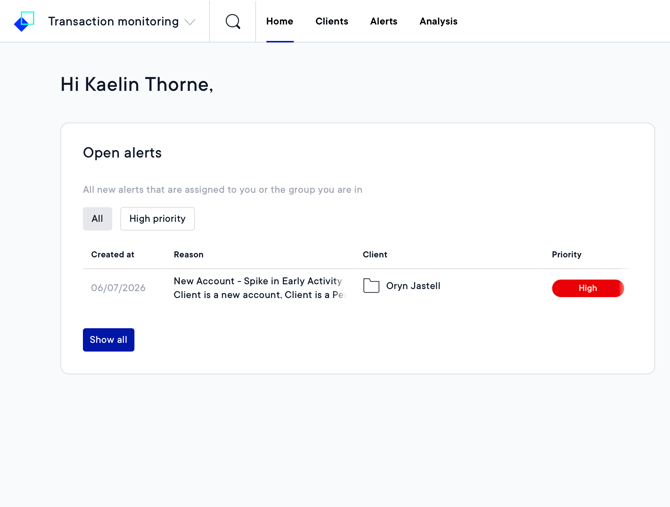
The Open alerts card shows all alerts currently assigned to you which have not been closed. At the top it is possible to only focus on very high and high priority alerts, by going to the High priority filtered list. The Show all button will take you to the Alerts page, showing you also unassigned and alerts assigned to colleagues.
Handling an alert
To resolve an alert assigned to you. Follow the below steps:
- Open the alert by clicking on the alert in the Open alerts card on your Home page.
- The alert will open and show you details on the alert.
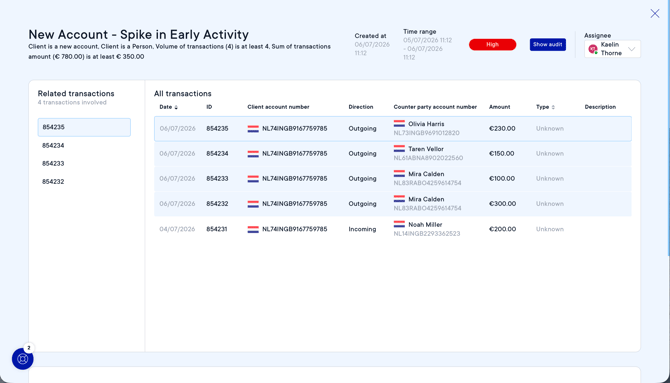
- Review the alert name and reason in the top of the screen. In the above example the alert title is New Account - Spike in Early Activity. The reason the alert is triggered, is the following has occurred within a day:
- It is regarding a new account.
- The client is a Person.
- 4 transactions have occurred.
- The value of the transactions exceeds the allowed threshold of 350EUR.
- Review the Related transactions on the left, with more details on those specific transactions in the All transactions section on the right. All related transactions are also highlighted blue on in the All transactions section.
- After reviewing the transactions, scroll down to add a Judgement to the alert.
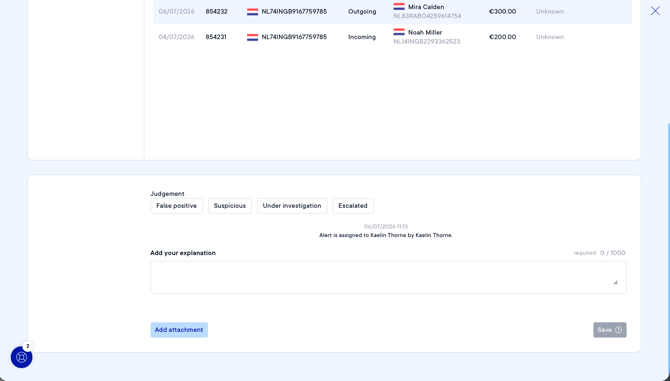
- Select False positive when the alert has been investigated and it is determined that the activity is legitimate, consistent with the customer's known profile and expected behavior, and there are no reasonable grounds to suspect money laundering, terrorist financing, fraud, or any other financial crime.
The reason for determining the alert as a false positive must be documented in the Add your explanation notes section. The Save button, will then close the alert. - Select Suspicious when the alert has been investigated and there are reasonable grounds to suspect that the activity may be related to money laundering, terrorist financing, fraud, or another financial crime.
The reason for determining the alert as suspicious must be documented in the Add your explanation notes section. The Save button, will then generate a report of the alert to escalate the suspicious event. - Select Under investigation when the alert requires additional review before a final determination can be made. This status should be used when further analysis, information, or supporting documentation is needed to assess whether the activity is legitimate or suspicious. The details of the investigation must be documented in the Add your explanation notes section until the investigation is completed and the alert can be classified as either False positive or Suspicious.
- Select Escalated when the alert should be further reviewed by another user. The reason for the escalation and information of the investigation until now must be documented in the Add your explanation notes section.
- Select False positive when the alert has been investigated and it is determined that the activity is legitimate, consistent with the customer's known profile and expected behavior, and there are no reasonable grounds to suspect money laundering, terrorist financing, fraud, or any other financial crime.
- Continue the investigation into the alert. Updates and new information should be added to the Judgement of the alert in the Add your explanation notes section and a file can be added via the Add attachment option. The investigation is completed when the alert is classified as either False positive or Suspicious.
This documentation, including images, videos and text, is accurate as of Version 7.16 of Pascal.
We strive to keep our documentation up to date with each release to ensure it remains a reliable resource for our users. However, given the dynamic nature of our software development, there might be instances where changes introduced in subsequent versions are not immediately reflected in this documentation. We encourage users to refer to the latest release notes and to use the feedback mechanism for any discrepancies or requests for clarification.